Session 09 - Javascript, Part 2
Harvard Extension School
Spring 2022
Course Web Site: https://cscie12.dce.harvard.edu/
Topics
- Javascript - What can you do?
- Ice Cream Options
- JS Data Structures - array and "object" (key/value pair)
- Loops and Iteration
- Working with Key/Value objects and Arrays
- Responsive Navigation
Presentation contains 17 slides





Javascript - What can you do?
Programmatic access to all aspects of your web page!
- Manipulate classes and style properties
- Manipulate content
- Validate user input
- Communicate with Web Server (XHR, Ajax)
Getting Started with JavaScript
- MDN JavaScript
- JS Reference (DevDocs)
- W3Schools JavaScript
- JavaScript for Web Designers, a short book available online through the Harvard Library.
- Jennifer Robbins, 2018. Learning Web Design: A Beginner's Guide to HTML, CSS, JavaScript, and Web Graphics, 5th ed. O'Reilly Media. 500 p. ISBN 978-1491960202
JavaScript Review
Ice Cream Options
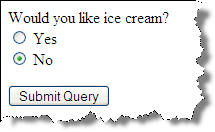
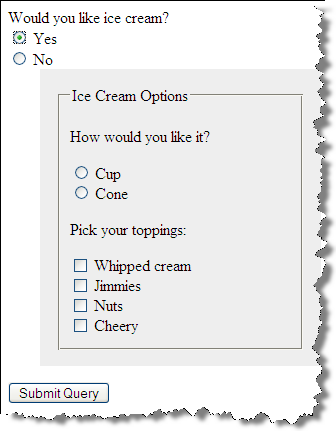
 <form method="post" name="ice_cream" id="ice_cream" action="https://cs12.net/form/submit.php">
   <div>Would you like ice cream?
     <label>
       <input type="radio" name="want" id="ic_yes" value="yes"/>
Yes     </label>
     <label>
       <input type="radio" name="want" id="ic_no" value="no"/>
No     </label>
   </div>
   <fieldset id="icecream_options">
     <legend>Ice Cream Options     </legend>
     <p>Cup or a Cone?
     </p>
     <label>
       <input type="radio" id="container_cup" name="container" value="cup"/>
Cup     </label>
     <label>
       <input type="radio" id="container_cone" name="container" value="cone"/>
Cone     </label>
     <p>Pick your toppings:
     </p>
     <label>
       <input type="checkbox" name="toppings" id="toppings_wc" value="whipcream"/>
Whipped cream     </label>
     <label>
       <input type="checkbox" name="toppings" id="toppings_jimmies" value="jimmies"/>
Jimmies     </label>
     <label>
       <input type="checkbox" name="toppings" id="toppings_sprinkles" value="sprinkles"/>
Sprinkles     </label>
     <label>
       <input type="checkbox" name="toppings" id="toppings_nuts" value="nuts"/>
Nuts     </label>
     <label>
       <input type="checkbox" name="toppings" id="toppings_cherry" value="cherry"/>
Cherry     </label>   </fieldset>
   <button type="submit">Submit Order   </button>
 </form>
In style
element
(<style>) within head element:
#icecream_options {  background-color: rgb(238, 238, 238);
  padding: 1rem;
  margin-top: 1rem;
  display: block;
} #icecream_options.hide { display: none; }
label { display: block; }
In
script element within head element (<script>):
document.addEventListener("DOMContentLoaded", function() {
  console.log('dom is loaded!');
   let icOptions = document.getElementById('icecream_options');
   console.log(icOptions);

   icOptions.classList.add('hide');

   let yesRadio = document.getElementById('ic_yes');

   yesRadio.addEventListener('click', function(){
       /* remove "hide" class from icecream_options */
       if (yesRadio.checked == true) {
           icOptions.classList.remove('hide');
       }
   });

   let noRadio = document.getElementById('ic_no');
   noRadio.addEventListener('click',function(){
       /* add 'hide' class */
       if (noRadio.checked == true) {
           icOptions.classList.add('hide');
       }
   });
});

}
JS Data Structures - array and "object" (key/value pair)
array Example:
['Autumn', 'Winter', 'Spring', 'Summer']
object Examples:
Simple "name/value" pairs:
                {
                  "lastName" : "Bacow",
                  "firstName" : "Lawrence",
                  "email" : "president@harvard.edu"
                }
"name/value" pairs, with values being an array (list) of things:
                {
                  "apples" : ['Macoun','Empire','Honey Crisp','Albemarle Pippin'],
                  "oranges" : ['Naval Orange','Tangelo','Clementine','Valencia Orange']
                }
Loops and Iteration
let oranges = ['Naval Orange','Tangelo','Clementine','Valencia Orange'];
/* Iterate with for..of */
console.log("Iterate with: item of array");
for (const myorange of oranges) {
   console.log(myorange);
}
console.log("DONE!");

/* Iterate with 'classic' for (i = 0 ; i < LENGTH ; i++) */
console.log("Iterate with classic for i = ;  < ; i++");
for (let i = 0; i < oranges.length; i++ ) {
   console.log(i);
   console.log(oranges[i]);
}
console.log("DONE!");

/* Iterate with '.forEach()' */
console.log("Iterate with forEach()");
oranges.forEach(function(myorange){
  console.log(myorange);
});
console.log("DONE!");
querySelector and querySelectorAll
- Both take "CSS style" selectors.
- querySelector returns only the first match
- querySelectorAll returns a list of items (even if it is a list of zero or one -- it returns a list!).
Let's Improve on the Ice Cream Example
Ice Cream Options - select and add click listener improvements
- Markup and CSS are the same.
- JS is a bit different in how we select the input radio buttons to add the click handler. We get to use
querySelectorAll()method that let's us select elements using "CSS selector" syntax! Yay! This is often easier than selecting with other DOM methods. - JS function of
iceCreamOptionsDisplayremains the same!
Starting Point
document.addEventListener('DOMContentLoaded',function(){
    console.log('dom is loaded!');
    let icOptions = document.getElementById('icecream_options');
    console.log(icOptions);

    icOptions.classList.add('hide');

    let yesRadio = document.getElementById('ic_yes');
    yesRadio.addEventListener('click', function(){
        /* remove "hide" class from icecream_options */
        if (yesRadio.checked == true) {
            icOptions.classList.remove('hide');
        }
    });

    let noRadio = document.getElementById('ic_no');
    noRadio.addEventListener('click',function(){
        /* add 'hide' class */
        if (noRadio.checked == true) {
            icOptions.classList.add('hide');
        }
    });

})
Using querySelectorAll and iterate through the list
/* use querySelectorAll and then loop
  through the list using "for (item in list) { }"
  */
inputsWant = document.querySelectorAll("form input[name=want]");
console.log(inputsWant);
for (let input of inputsWant) {
  console.log(input);
  input.addEventListener("click", function(){...});
}
 <h3>Ice Cream </h3>
 <form method="post" name="ice_cream" id="ice_cream" action="https://cs12.net/form/submit.php">
   <div>Would you like ice cream?
     <label>
       <input type="radio" name="want" id="ic_yes" value="yes"/>
Yes     </label>
     <label>
       <input type="radio" name="want" id="ic_no" value="no"/>
No     </label>
   </div>
   <fieldset id="icecream_options">
     <legend>Ice Cream Options     </legend>
     <p>Cup or a Cone?
     </p>
     <label>
       <input type="radio" id="container_cup" name="container" value="cup"/>
Cup     </label>
     <label>
       <input type="radio" id="container_cone" name="container" value="cone"/>
Cone     </label>
     <p>Pick your toppings:
     </p>
     <label>
       <input type="checkbox" name="toppings" id="toppings_wc" value="whipcream"/>
Whipped cream     </label>
     <label>
       <input type="checkbox" name="toppings" id="toppings_jimmies" value="jimmies"/>
Jimmies     </label>
     <label>
       <input type="checkbox" name="toppings" id="toppings_sprinkles" value="sprinkles"/>
Sprinkles     </label>
     <label>
       <input type="checkbox" name="toppings" id="toppings_nuts" value="nuts"/>
Nuts     </label>
     <label>
       <input type="checkbox" name="toppings" id="toppings_cherry" value="cherry"/>
Cherry     </label>   </fieldset>
   <p>
     <input type="submit"/>

   </p>
 </form>
In style
element
(<style>) within head element:
body {font-family: Calibri,Tahoma,Verdana,Helvetica,sans-serif;}
label { display: block;}

input[type=submit] {display: block; margin-top: 1rem;}

#icecream_options {
  display: block;
  background-color: rgb(238, 238, 238);
  margin-left: 1em;
}
#icecream_options.hide {
  display: none;
}
In
script element within head element (<script>):
"use strict";

let inputsWant;
console.log("hello from ice_cream.js");

document.addEventListener("DOMContentLoaded", function () {
  /* here's where JS goes for when DOM is loaded */
  /* add click listener to yes and no input choices
     use "querySelectorAll", which lets us use CSS selectors!
     querySelectorAll returns a list of things that we can
     loop through via 'for ( item of list ) { }'
     */
  inputsWant = document.querySelectorAll("form input[name=want]");
  console.log(inputsWant);
  for (let input of inputsWant) {
    console.log(input);
    input.addEventListener("click", iceCreamOptionsDisplay);
  }
});

function iceCreamOptionsDisplay() {
  let icoEl, radioYes;
  console.log("in iceCreamOptionsDisplay");
  icoEl = document.getElementById("icecream_options");
  console.log(icoEl);
  radioYes = document.getElementById("ic_yes");
  if (radioYes.checked == true) {
    icoEl.classList.remove('hide');
  } else {
    icoEl.classList.add('hide');
  }
}
Javascript and DOM: Building Content
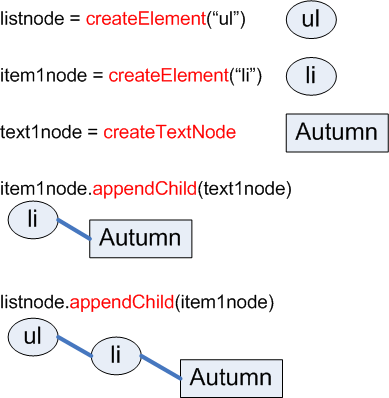
And do the same for the other three seasons to get: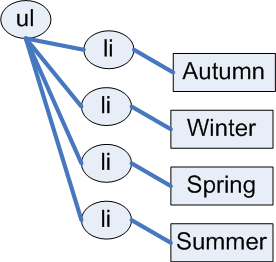
Javascript and DOM: Building Content
 <p>
   <button id="makelist" type="submit">Build List of Seasons   </button>
 </p>
 <div id="seasonslist1">
 </div>
In
script element within head element (<script>):
function makeSeasonsList() {
  let ul_node = document.createElement("ul");

  /* Autumn */
  let li_node1 = document.createElement("li");
  let li_text1 = document.createTextNode("Autumn");
  li_node1.appendChild(li_text1);

  /* Winter */
  let li_node2 = document.createElement("li");
  let li_text2 = document.createTextNode("Winter");
  li_node2.appendChild(li_text2);

  /* Spring */
  let li_node3 = document.createElement("li");
  let li_text3 = document.createTextNode("Spring");
  li_node3.appendChild(li_text3);

  /* Summer */
  let li_node4 = document.createElement("li");
  let li_text4 = document.createTextNode("Summer");
  li_node4.appendChild(li_text4);

  /* Append the list items to the ul */
  ul_node.appendChild(li_node1);
  ul_node.appendChild(li_node2);
  ul_node.appendChild(li_node3);
  ul_node.appendChild(li_node4);

  /* Place on page */
  let container = document.getElementById("seasonslist1");
  container.appendChild(ul_node);
}

/* Wait for DOM to be loaded, then add the click listener
   to the button */
document.addEventListener('DOMContentLoaded',function(){
  document.getElementById('makelist').addEventListener('click', makeSeasonsList);
});
Javascript and DOM: Building Content
Using an array (a list).
let seasons = ['Spring', 'Summer', 'Autumn', 'Winter'];
Iterate through Array
 <p>
   <button id="makelist" type="submit">Build List of Seasons   </button>
 </p>
 <div id="seasonslist2">
 </div>
In head element:
<script src="example4.js"> </script>Contents of example4.js
function makeSeasonsList() {
ul_node = document.createElement("ul");
let seasons = ['Spring', 'Summer', 'Autumn', 'Winter'];
for (let i = 0 ; i < seasons.length ; i++ ) {
  let mytext = i + " " + seasons[i];
  let text_node = document.createTextNode(mytext);
  let li_node = document.createElement("li");
  li_node.appendChild(text_node);
  ul_node.appendChild(li_node);
};
let container = document.getElementById("seasonslist2");
container.appendChild(ul_node);
}
/* Wait for DOM to be loaded, then add the click listener
   to the button */
document.addEventListener('DOMContentLoaded',function(){
  document.getElementById('makelist').addEventListener('click', makeSeasonsList);
});
Using forEach array method
 <p>
   <button id="makelist" type="submit">Build List of Seasons   </button>
 </p>
 <div id="seasonslist3">
 </div>
In head element:
<script src="example5.js"> </script>Contents of example5.js
function makeSeasonsList() {
  ul_node = document.createElement("ul");
  let seasons = ['Spring', 'Summer', 'Autumn', 'Winter'];
  seasons.forEach(function(s){
    let text_node = document.createTextNode(s);
    let li_node = document.createElement("li");
    li_node.appendChild(text_node);
    ul_node.appendChild(li_node);
  });
  let container = document.getElementById("seasonslist3");
  container.appendChild(ul_node);
}

/* Wait for DOM to be loaded, then add the click listener
   to the button */
document.addEventListener('DOMContentLoaded',function(){
  document.getElementById('makelist').addEventListener('click', makeSeasonsList);
});
DOM methods vs innerHTML
- With DOM methods, we are creating nodes
- With
innerHTMLwe are getting are setting the HTML string values.
Working with Key/Value objects and Arrays
Data:
{
  "apples" : ['Macoun','Empire','Honey Crisp','Albemarle Pippin'],
  "oranges" : ['Naval Orange','Tangelo','Clementine','Valencia Orange']
}
 <h1>List of Fruits from Data </h1>
 <div id="fruits"><!-- list goes here -->
 </div>
In
script element within head element (<script>):
"use strict";

let fruits = {
    "apples": ['Macoun', 'Empire', 'Honey Crisp', 'Albemarle Pippin'],
    "oranges": ['Naval Orange', 'Tangelo', 'Clementine', 'Valencia Orange']
};
document.addEventListener('DOMContentLoaded',function(){
    buildFruitList();
});

function buildFruitList(){
    let fruitList = document.createElement('ul');
    for (const f in fruits) {
        console.log(f);
        let li = document.createElement('li');
        li.appendChild(document.createTextNode(f));
        if (Array.isArray(fruits[f])) {
            console.log(fruits[f]);
            let itemList = document.createElement('ul');
            for (const item of fruits[f]) {
                let li = document.createElement('li');
                li.appendChild(document.createTextNode(item));
                itemList.appendChild(li);
            }
            li.appendChild(itemList);
        }
        fruitList.appendChild(li);
    }
    document.getElementById('fruits').appendChild(fruitList);
}
JavaScript:
"use strict";

let fruits = {
    "apples": ['Macoun', 'Empire', 'Honey Crisp', 'Albemarle Pippin'],
    "oranges": ['Naval Orange', 'Tangelo', 'Clementine', 'Valencia Orange']
};
document.addEventListener('DOMContentLoaded',function(){
    buildFruitList();
});

function buildFruitList(){
    let fruitList = document.createElement('ul');
    for (const f in fruits) {
        console.log(f);
        let li = document.createElement('li');
        li.appendChild(document.createTextNode(f));
        if (Array.isArray(fruits[f])) {
            console.log(fruits[f]);
            let itemList = document.createElement('ul');
            for (const item of fruits[f]) {
                let li = document.createElement('li');
                li.appendChild(document.createTextNode(item));
                itemList.appendChild(li);
            }
            li.appendChild(itemList);
        }
        fruitList.appendChild(li);
    }
    document.getElementById('fruits').appendChild(fruitList);
}
Responsive Navigation
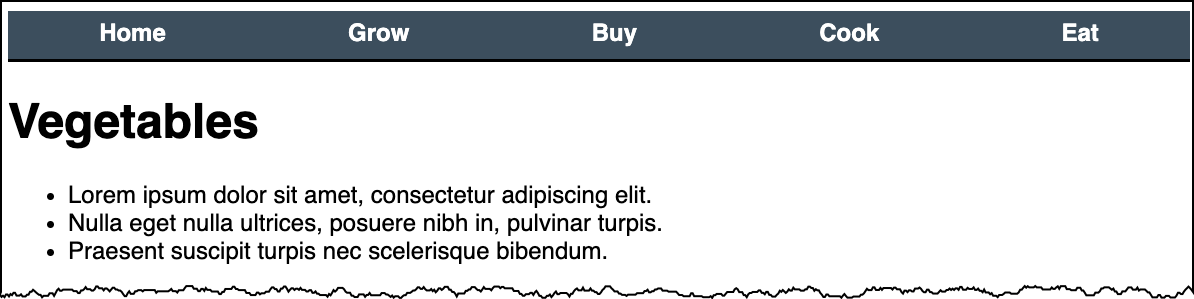
- Horizontal menu when wide screen
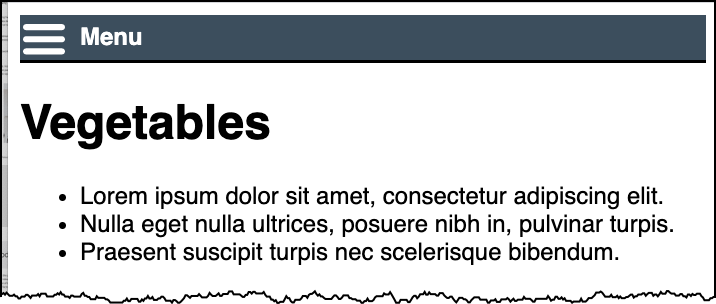
- Collapsed menu when small screenshot
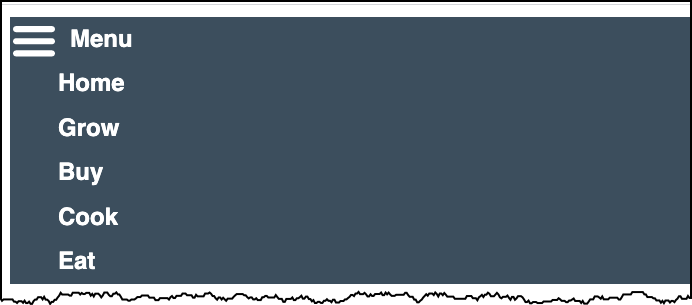
- toggle of display of expanded menu
Responsive Navigation
- CSS to set initial state of navigation, for smaller widths and larger width screens.
- For small screen:
- set 'click' event that will toggle the menu state
- add or remove (i.e. 'toggle') a class that controls hidden or expanded.