Session 11a - Javascript, Part 4
Harvard Extension School
Fall 2024
Course Web Site: https://cscie12.dce.harvard.edu/
Topics
- Announcements
- Forms - Basic
- Accessibility: Label Element
- HTML5 forms
- Client-side Form Validation
- Image Gallery
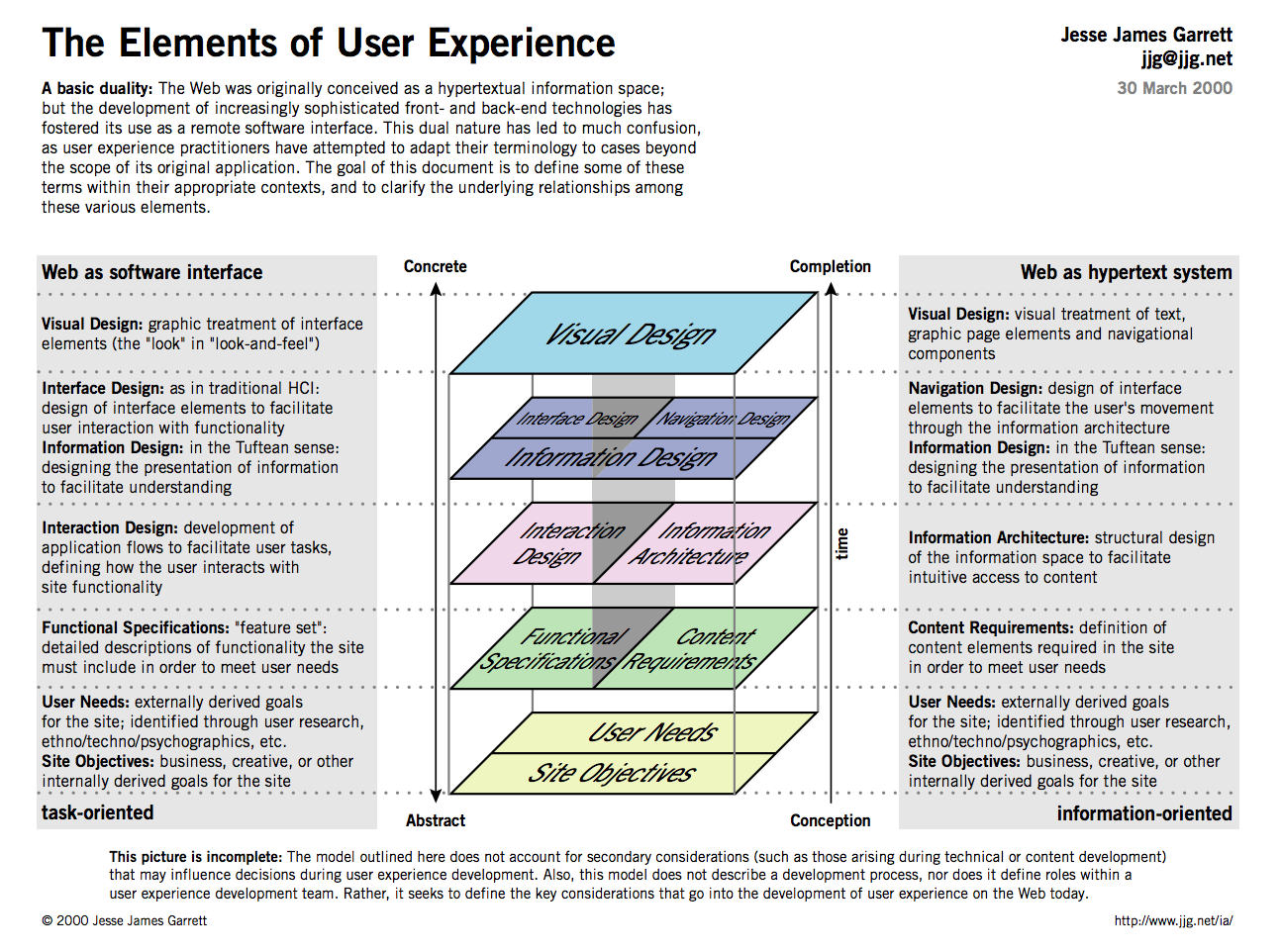
- Elements of User Experience
Presentation contains 30 slides





Announcements
- Later in November: November 20, 2024. Class will be pre-recorded, and there will be no live class meeting!
- Assignment 08: JavaScript Choose Your Own Adventures
Given today, Due November 22. - Optional "Assignment Redo" - Redo one of your existing assignments and gain back up to half the points!
- Holidays: November 27 to December 1. HES 2024-25 Academic Calendar
- Final Project due date: December 18, 6 pm
Assignment 08: JavaScript Choose Your Own Adventures
Pick two of:
- Templates
- Maps
- Form validation
- Image Gallery
Forms - Basic
Two elements for forms are in our list of most commonly seen elements:
forminputbutton
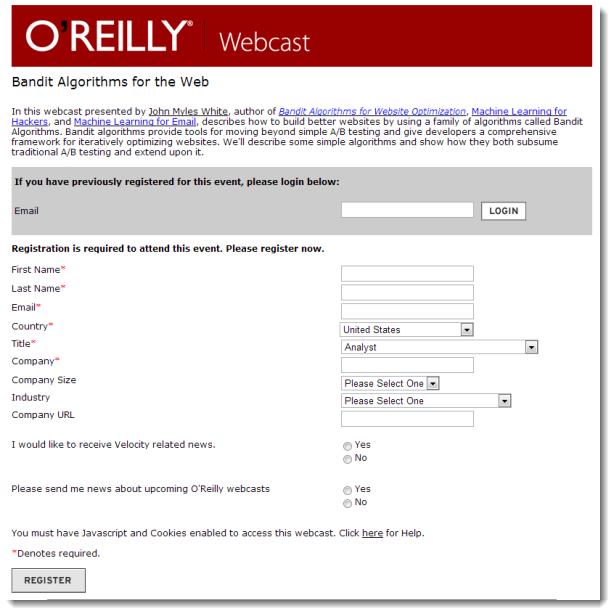
Forms
Forms are the "front-end" for the HTTP Client to send information back to the HTTP Server. The submitted information is passed from the HTTP Server to a server-side program that processes the information and produces a response for the browser.
Forms
- Text
- Single line (text input)
- Password
- Text area (textarea)
- Choices
- Choose one
- radio group
- option list (menu)
- Choose multiple
- checkbox group
- Choose one
- File Upload
- Hidden
- Submit
Forms
form
- method ("get" or "post")
- action (URL of server-side program to process submitted data/information)
While exploring forms, it is useful to use a simple server-side script that simply echo back the name/value information your form submitted (https://cs12.net/form/submit.php).
 <form method="post" action="https://cs12.net/form/submit.php">Email Address:
   <input type="text" name="email"/>

   <button type="submit">Submit   </button>
 </form>
HTTP Method: Get vs. Post
- Use POST when form action should not be repeated; or when the action "changes the state"
- Use GET when form action is safely repeatable; when the action does not change the state.
The technical term for this is "idempotent".
- Query String
https://host/path?param1=value1¶m2=value2¶m3=value3- Question mark
- Ampersand separated parameter/value pairs
- parameter=value
 <form method="get" action="https://cs12.net/form/submit.php">Email Address:
   <input type="text" name="email"/>

   <button type="submit">Submit   </button>
 </form>
 <form method="post" action="https://cs12.net/form/submit.php">Email Address:
   <input type="text" name="email"/>

   <button type="submit">Submit   </button>
 </form>
Text Field
 <form method="get" action="https://cs12.net/form/submit.php">Email Address:
   <input type="text" name="email"/>

   <br/>
Year of Birth:
   <input type="text" name="year_of_birth" maxlength="4"/>

   <br/>

   <button type="submit">Submit Information   </button>
 </form>
Radio Buttons
 <form method="get" action="https://cs12.net/form/submit.php">Email Address:
   <input type="text" name="email"/>

   <br/>
Please send me email updates:
   <br/>

   <input type="radio" name="sendupdates" value="yes" checked="checked"/>
yes
   <br/>

   <input type="radio" name="sendupdates" value="no"/>
no
   <br/>

   <button type="submit">Submit Information   </button>
 </form>
Checkbox
 <form method="get" action="https://cs12.net/form/submit.php">What ice cream do you like?
   <br/>

   <input type="checkbox" name="icecream" value="chocolate"/>
Chocolate
   <br/>

   <input type="checkbox" name="icecream" value="chocolate peanut butter"/>
Chocolate Peanut Butter
   <br/>

   <input type="checkbox" name="icecream" value="vanilla"/>
Vanilla
   <br/>

   <input type="checkbox" name="icecream" value="strawberry"/>
Strawberry
   <br/>

   <button type="submit">Submit Information   </button>
 </form>
Textarea
 <form method="post" action="https://cs12.net/form/submit.php">
   <strong>Comments   </strong>
   <textarea name="comments" rows="10" cols="50">Please enter comments...   </textarea>
   <button type="submit">Submit Information   </button>
 </form>
In style
element
(<style>) within head element:
textarea {
             display: block;
             margin: 1rem 0;
     }
Select and Option
Pull-down menu
 <form method="get" action="https://cs12.net/form/submit.php">Select your favorite New England states:
   <br/>

   <select name="state">
     <option value="CT">Connecticut     </option>
     <option value="ME">Maine     </option>
     <option value="MA">Massachusetts     </option>
     <option value="NH">New Hampshire     </option>
     <option value="RI">Rhode Island     </option>
     <option value="VT">Vermont     </option>   </select>
   <br/>

   <button type="submit">Submit Information   </button>
 </form>
Scrollable list ← DON'T DO THIS!
Note: because scrollable lists are difficult for users, they are not typically used.
A scrollable list (size attribute) that can have multiple selections (multiple attribute):
 <form method="get" action="https://cs12.net/form/submit.php">Select your favorite New England states:
   <br/>

   <select name="state" size="3" multiple="multiple">
     <option value="CT">Connecticut     </option>
     <option value="ME">Maine     </option>
     <option value="MA">Massachusetts     </option>
     <option value="NH">New Hampshire     </option>
     <option value="RI">Rhode Island     </option>
     <option value="VT">Vermont     </option>   </select>
   <br/>

   <button type="submit">Submit Information   </button>
 </form>
Accessibility: Label Element
Label elements are critical for form accessibility.
label element lets us use markup to associate text with an input element.
Using label you can make the association between the text label and the form input explicit, and not just rely on the visual proximity.
Labels - Why?
- Makes text labels associated wtih input elements explicit
- Helps with screen readers!
- Helps with "clicks" and touch screens!
Accessibility: Label Element
 <form method="get" action="https://cs12.net/form/submit.php">
   <p>Do you like to watch NCAA basketball?
   </p>
   <label>
     <input type="radio" name="basketball" value="Y"/>
Yes   </label>
   <label>
     <input type="radio" name="basketball" value="N"/>
No   </label>
   <button type="submit">Submit   </button>
 </form>
In style
element
(<style>) within head element:
label, button { display: block; }
       button { margin-top: 1rem;}
Label Element - using id, label, for
- Explicit
- id attribute for form input
- label element for input label
- for attribute in label to link label element with input via the value of id
 <form method="get" action="https://cs12.net/form/submit.php">
   <p>Do you like to watch NCAA basketball?
   </p>
   <input type="radio" name="basketball" id="basketball_y" value="Y"/>

   <label for="basketball_y">Yes   </label>
   <br/>

   <input type="radio" name="basketball" id="basketball_n" value="N"/>

   <label for="basketball_n">No   </label>
   <br/>

   <input type="submit" value="Submit"/>

 </form>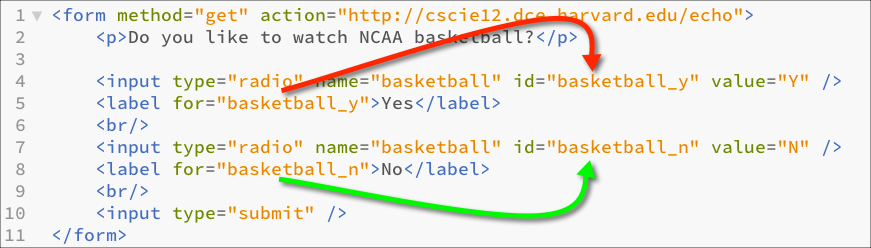
Labels
 <form method="get" action="https://cs12.net/form/submit.php">
   <div>What ice cream do you like?
     <br/>

     <input type="checkbox" name="icecream" id="icecream_chocolate" value="chocolate"/>

     <label for="icecream_chocolate">Chocolate     </label>
     <br/>

     <input type="checkbox" name="icecream" id="icecream_cpb" value="chocolate peanut butter"/>

     <label for="icecream_cpb">Chocolate Peanut Butter     </label>
     <br/>

     <input type="checkbox" name="icecream" id="icecream_vanilla" value="vanilla"/>

     <label for="icecream_vanilla">Vanilla     </label>
     <br/>

     <input type="checkbox" name="icecream" id="icecream_strawberry" value="strawberry"/>

     <label for="icecream_strawberry">Strawberry     </label>
     <br/>

     <button type="submit">Submit Information     </button>
   </div>
 </form>
fieldset and legend
Used to group related choices and even sets.
fieldset and legend elements can further help group related input fields.
 <form method="get" action="https://cs12.net/form/submit.php">
   <div>
     <fieldset>
       <legend>Name       </legend>
       <label>First Name
         <input type="text" name="fname" size="30"/>
       </label>
       <label>Last Name
         <input type="text" name="lname" size="30"/>
       </label>     </fieldset>
     <fieldset>
       <legend>Sports       </legend>
       <fieldset>
         <legend>Do you like basketball?         </legend>
         <label>
           <input type="radio" name="basketball" value="Y"/>
Yes         </label>
         <label>
           <input type="radio" name="basketball" value="N"/>
No         </label>       </fieldset>
       <fieldset>
         <legend>Do you like baseball?         </legend>
         <label>
           <input type="radio" name="baseball" value="Y"/>
Yes         </label>
         <label>
           <input type="radio" name="baseball" value="N"/>
No         </label>       </fieldset>     </fieldset>
     <button type="submit">Submit     </button>
   </div>
 </form>
In style
element
(<style>) within head element:
label { display: block; }
     fieldset { margin-top: 1rem;}
     button { display: block; margin-top: 1rem; padding: 0.5rem 1rem;}
optgroup
The optgroup element allows you to group a long select list.
 <p>Select a school:
 </p>
 <form method="get" action="https://cs12.net/form/submit.php">
   <select name="school">
     <optgroup label="ACC">
       <option>Boston College       </option>
       <option>Clemson       </option>
       <option>Duke       </option>
       <option>Florida State       </option>
       <option>Georgia Tech       </option>
       <option>Louisville       </option>
       <option>Miami       </option>
       <option>North Carolina       </option>
       <option>North Carolina State       </option>
       <option>Notre Dame       </option>
       <option>Pitt       </option>
       <option>Syracuse       </option>
       <option>Virginia       </option>
       <option>Virginia Tech       </option>
       <option>Wake Forest       </option>     </optgroup>
     <optgroup label="Big 10">
       <option>Illinois       </option>
       <option>Indiana       </option>
       <option>Iowa       </option>
       <option>Maryland       </option>
       <option>Michigan       </option>
       <option>Michigan State       </option>
       <option>Minnesota       </option>
       <option>Nebraska       </option>
       <option>Northwestern       </option>
       <option>Ohio State       </option>
       <option>Oregon       </option>
       <option>Penn State       </option>
       <option>Purdue       </option>
       <option>Rutgers       </option>
       <option>UCLA       </option>
       <option>USC       </option>
       <option>Washington       </option>
       <option>Wisconsin       </option>     </optgroup>
     <optgroup label="Big XII">
       <option>Arizona       </option>
       <option>Arizona state       </option>
       <option>Baylor       </option>
       <option>Brigham Young       </option>
       <option>Central Florida       </option>
       <option>Cincinnati       </option>
       <option>Colorado       </option>
       <option>Houston       </option>
       <option>Iowa State       </option>
       <option>Kansas       </option>
       <option>Kansas State       </option>
       <option>Oklahoma       </option>
       <option>Oklahoma State       </option>
       <option>Texas Christian       </option>
       <option>Texas Tech       </option>
       <option>Utah       </option>
       <option>West Virginia       </option>     </optgroup>
     <optgroup label="Ivy League">
       <option>Brown       </option>
       <option>Columbia       </option>
       <option>Cornell       </option>
       <option>Dartmouth       </option>
       <option>Harvard       </option>
       <option>Penn       </option>
       <option>Princeton       </option>
       <option>Yale       </option>     </optgroup>   </select>
   <div>
     <button type="submit">Submit     </button>
   </div>
 </form>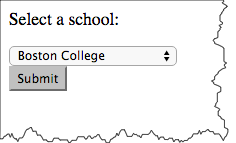

HTML5 forms
- HTML5 - Forms (HTML Living Standard)
- MDN: The form <input> element
HTML5 forms - placeholder, autofocus, and specific input types
- HTML5 Form Example
- placeholder text
- autofocus
- input types for
- url
- number
- range
- date and time
HTML5: email and url
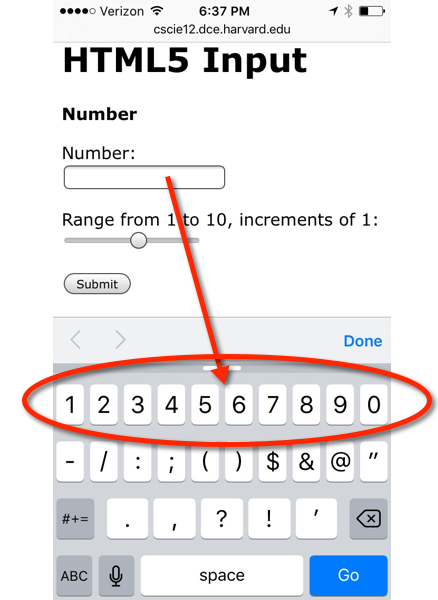
On handheld devices, screen keyboard is optimized for input.
type="email"
 <form action="https://cs12.net/form/submit.php" method="post">
   <label>Email:
     <input type="email" name="email_address"/>
   </label>
   <button type="submit">Submit   </button>
 </form>
In style
element
(<style>) within head element:
label, button { display: block; margin-top: 1rem;}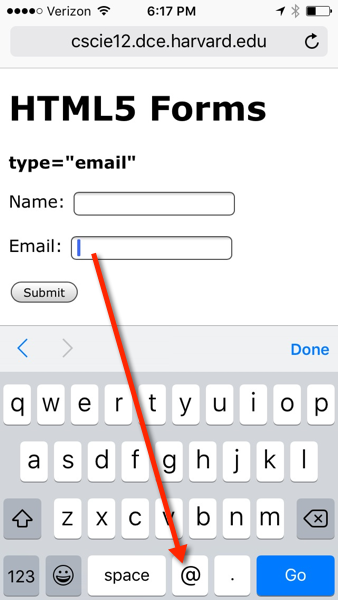
type="url"
 <form action="https://cs12.net/form/submit.php" method="post">
   <label>URL:
     <input type="url" name="url"/>
   </label>
   <button type="submit">Submit   </button>
 </form>
In style
element
(<style>) within head element:
label, button { display: block; margin-top: 1rem;}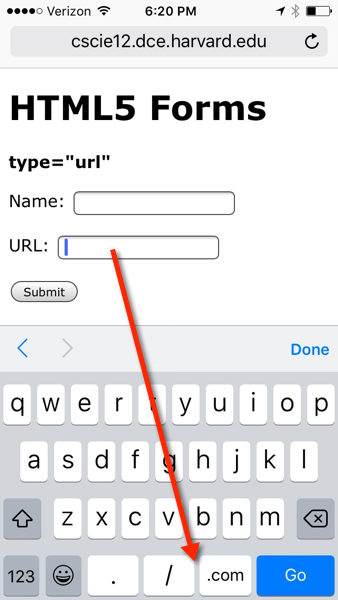

HTML5: number and range
 <form action="https://cs12.net/form/submit.php" method="post">
   <label>Pick a number:
     <input type="number" name="entered_number"/>
   </label>
   <label>How happy are you?
     <input type="range" min="1" max="5" value="3" step="1" name="happy"/>
   </label>
   <button type="submit">Submit   </button>
 </form>
In style
element
(<style>) within head element:
label, button { display: block; margin-top: 1rem;}
     input { display: block; }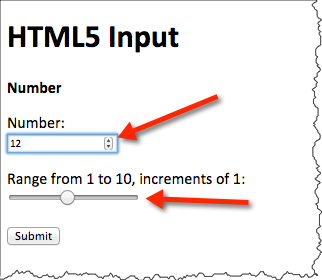
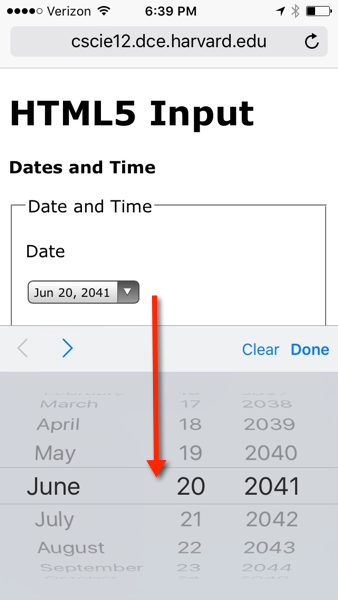
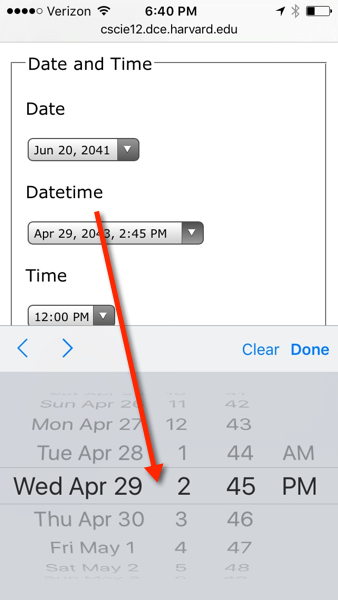
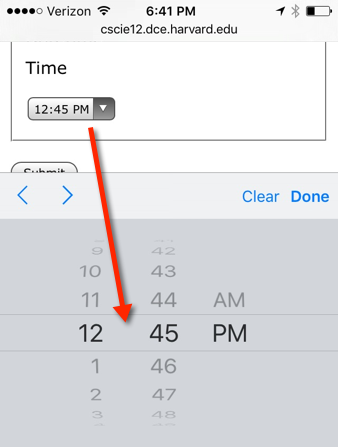
HTML5: date and time
 <form action="https://cs12.net/form/submit.php" method="post">
   <fieldset>
     <legend>Date and Time     </legend>
     <label>Pick a date:
       <input type="date" name="my_date"/>
     </label>
     <label>Pick a datetime
       <input type="datetime-local" name="my_datetime"/>
     </label>
     <label>Pick a time (15 minute increments)
       <input type="time" name="my_time_15" step="900" value="12:00"/>
     </label>
     <label>Pick a time (1 minute increments)
       <input type="time" name="my_time_1" step="60" value="12:00"/>
     </label>
     <label>Pick a time (1 second increments)
       <input type="time" name="my_time_1s" step="1" value="12:00"/>
     </label>   </fieldset>
   <button type="submit">Submit   </button>
 </form>
In style
element
(<style>) within head element:
label, button { display: block; margin-top: 1rem;}
             input { display: block;  margin-top: 0.25rem;}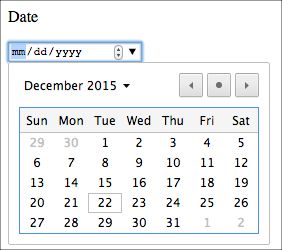
Processing Forms on the server side
- Course Form Submit Script
- Formspree - is a form backend, API, and email service for HTML & JavaScript forms. It's the simplest way to embed custom contact us forms, order forms, or email capture forms on your static website.
Client-side Form Validation
Provide feedback to users prior to submitting form.
- Native browser functionality with HTML5 form controls (see MDN: Client-side form validation)
- DIY (Do It Yourself) with JS
- JS libraries — some are 'plain' JS based (e.g. Pristine), others with jQuery (e.g. jQuery Validation Plugin).
JS: Form Validation - DIY (Do It Yourself)
Notes
- Pass in
ev(event) into the submit listener - Get value, test if two or more characters in length.
If true, then let form continue; else stop the form from submitting (ev.preventDefault())
document.addEventListener("DOMContentLoaded", function(){
       let form = document.querySelector('#myForm');
       form.addEventListener("submit", function(ev){
         console.log("Submit event happened!");
         console.log(ev);

         let nameInput = document.querySelector('#name');
         let nameInputValue = nameInput.value;

         if (nameInputValue.length >= 2) {
           // consider valid
           return true;
         } else {
           // consider invalid
           console.log("Please fill out name field");
           alert("Please fill out name field");
           // would want to have better feedback to user!
           ev.preventDefault();
         }
       })
     })
PristineJS - Form Validation
- PristineJS - Vanilla javascript form validation micro-library
- form1-pristine.html
document.addEventListener("DOMContentLoaded",function(){
       let form = document.getElementById("myForm");
       let pristine = new Pristine(form);
       form.addEventListener('submit', function (e) {
          let valid = pristine.validate();
          if (valid) {
            return true;
          } else {
            e.preventDefault();
          }
       });
     })
Image Gallery
Elements of User Experience
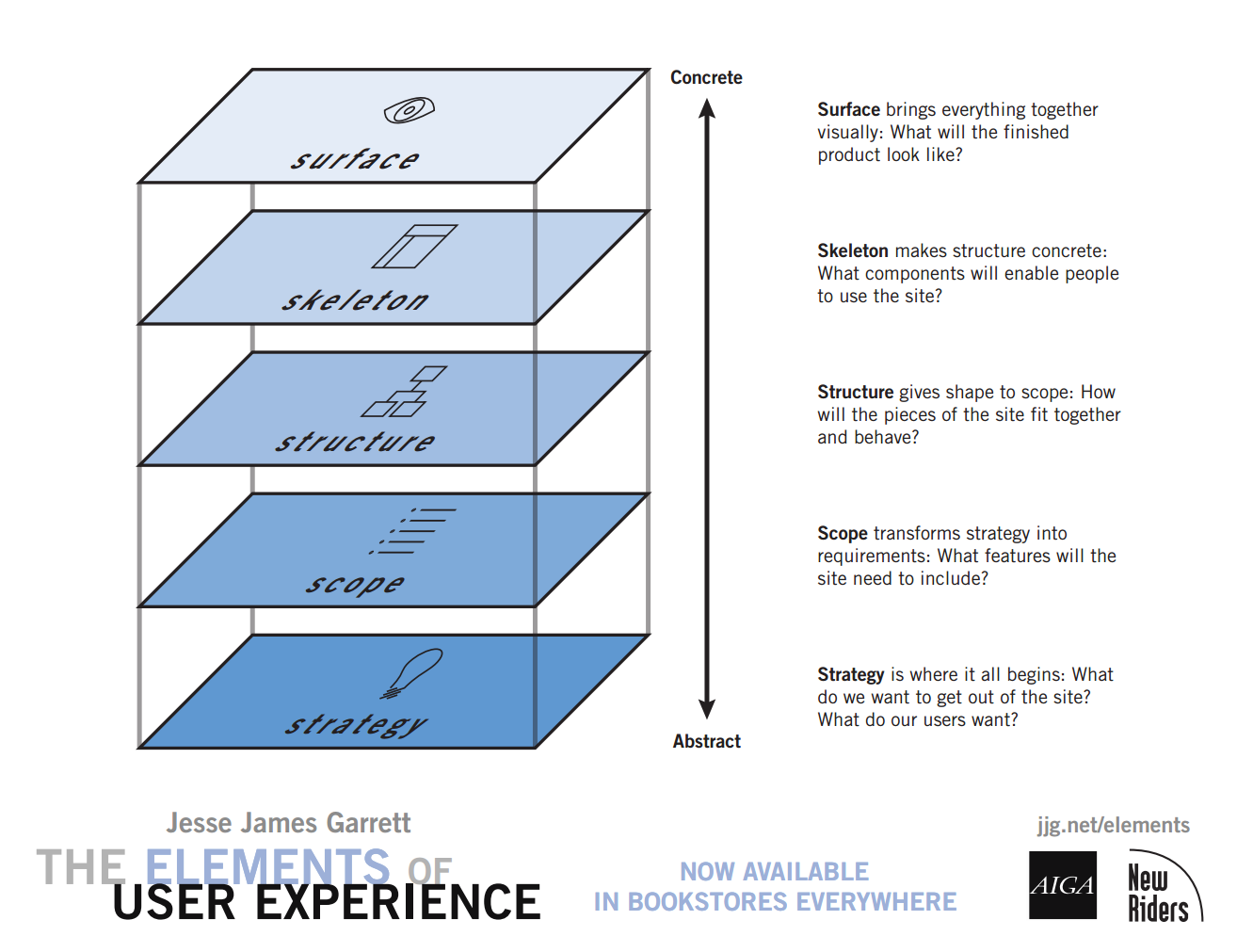
- The Elements of User Experience: User-Centered Design for the Web
- Planes Poster - Detailed
- The Elements of User Experience — Harvard Library Online Resource
5 Planes in More Detail